Sponsored by:

Fully Managed Technology Services
Fully Managed Technology Services
If you purchased a PC or Laptop/Notebook within the last 2 years (maybe triple that time for a Mac), most likely
it has what's called an EFI/UEFI BIOS which boots-up your Windows® 10 (or Mac OSX) from a GPT partitoned disk drive or SSD (or M.2 or even
an NVMe/PCI-e storage device). And that UEFI (Unified
Extensible Firmware Interface) BIOS will use data in a GPT (GUID Partition
Table) partitioned drive's second (2nd; LBA 1) sector, without even checking the contents of its first (1st; LBA 0) sector!
However, to prevent various tools and operating systems from overwriting critical data (or even whole partitions) on a GPT partitioned drive, its first
sector is given a "Protective Partition Table" with an assigned partition type of: EE. You'll find
all the details about such a partition entry and how to read a GPT on our page here: GPT.
HxD is one of the best FREE Windows disk editors:  HxD
HxD
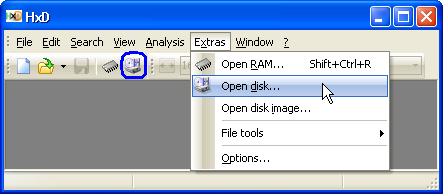 Use HxD's "Extras" menu to open Disks as "Logical" or "Physical" (to see/edit the MBR and other sectors outside Logical volumes). There's an Ubuntu CD in its optical drive (assigned the letter 'Z:'). 'Hard Disk 2' had no readable volumes and 'E:' was a USB drive. | 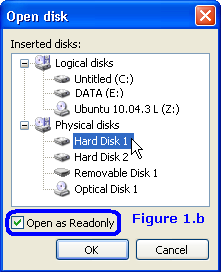 |
NEW(!) Step-by-step Tutorial for saving MBR,
VBR and hundreds of sectors of disk drives to files.
You may also wish to see our Hex Editor page
for other pictures (and a Tutorial which makes use of HxD to provide an image file of MS-DOS 1.10).
HxD is a Hex Editor for editing either binary files or hard disk sectors from within Windows! This makes it the first FREE Disk Editor
that can do many of the things people purchase a commercial editor like WinHex for! HxD continues to be improved by its author, who is still
interested in any bugs you might possibly find and open to suggestions! HxD already has all the basic features
you need: Both Hex and ASCII (including Unicode) search and replace, and it will open files, memory locations, hard
drives (as either logical or physical) and disk image files too!
Note: If you need to edit a disk drive under DOS or a
version of Windows prior to XP, PTS-DE is a very useful tool on a DOS boot diskette; especially if your computer won't boot up,
but being only a 16-bit DOS tool it can not be used under Windows 2000 or later!
Free Tools for Viewing and Editing
Partition Tables and/or OS Boot Records
|
A NOTE about PowerQuest : One of our readers recently (AUG 2016) informed us that it's still possible to occasionally find a Symantec support rep making use of some of these utilities; such as the one found here: https://support.symantec.com/en_US/article.TECH93277.html. Read the whole page and you'll be able to obtain the old PQ "MBRUTILD.exe" (for DOS) and MBRUtil.exe (for Win2k/Win XP) from there. |
Get a FREE set of Windows tools by PowerQuest from the Symantec FTP site for displaying and editing your Partition Tables and Boot Records... my page here will show you which files to download: The links are no longer any good!
1.
MBRFIX.EXE 1.3.0.0
(Author: Kåre Smith; of Systemintegrasjon AS; for Windows™ NT/2000, XP, 2003,
Vista and Windows 7). This links to a very nice page describing all the program's commands.
 |
Kåre has not only made sure you cannot easily mess things up when all you want to do
is save or restore your MBR sector, but he's also added lots of extras (more than 'fixmbr'; and there's even a 64-bit version)! MBRFix can be downloaded here.
Please read: My verification of MbrFix's 'fixmbr' command; various other commands, and a listing of the
program's usage display. Apart from MbrFix's "savembr" and "restorembr" commands, it has many other useful commands,
such as: "driveinfo" and "listpartitions". The command "fixmbr" writes the MBR code for Windows XP to
the first sector of the specified disk without changing the partition table; just like Microsoft's Recovery Console. |
MBRFIX.bat is a Batch (*.bat) program you can use to run some simple MbrFix commands on a Windows computer without having to first open a Command Line Interface (CLI) window. This Batch program will also record the date and time it was run, in the same way that our Sector Inspector Batch program does. Just copy and paste the following lines into a text editor, such as Notepad, save the file as "MBRFIX.bat" in the same folder as mbrfix.exe and either double-click on the Batch program (or use "Run") to execute it. [ Note: The 'driveinfo' and 'listpartitions' commands do not provide any data about Extended ('Logical') partitions; only those listed in the MBR Partition Table (up to 4 possible entries).] Our sample program (shown below) simply displays data about your first disk drive in NOTEPAD (after saving it to the file "drvdataout.txt"):
@echo off
REM  BATCH Program by Daniel B. Sedory to run
REM  MBRFix.exe without having to first open a
REM  Command Prompt window.  This program will
REM  only save information about a Windows PC's
REM  1st disk drive (drive 0 under MBRFIX.exe).
REM  If you chgange the command lines below(*);
REM  in which I used only the 'driveinfo' and
REM  the 'listpartitions' commands, then please
REM  REMOVE MY NAME and edit these notes!

if exist mbrfix.exe goto okrun
echo.
echo.
echo  Did not find mbrfix.exe in this folder, you
echo  must place mbrfix.exe in the same folder as
echo  MBRFIX.bat for it to run.
echo.
echo  Press any key to close this window.
pause > nul
goto close

:okrun
echo -------------- >> drvdataout.txt
echo Date and time: >> drvdataout.txt
date /t >> drvdataout.txt
time /t >> drvdataout.txt
echo -------------- >> drvdataout.txt
echo. >> drvdataout.txt
echo DRIVE INFOMRATION: >> drvdataout.txt
echo ----------------- >> drvdataout.txt

REM (*) Change the command in this line as desired:

mbrfix.exe /drive 0 driveinfo >> drvdataout.txt

echo. >> drvdataout.txt
echo PARTITION TABLE INFO: >> drvdataout.txt
echo -------------------- >> drvdataout.txt

REM (*) Change or delete this line as desired:

mbrfix.exe /drive 0 listpartitions >> drvdataout.txt

echo. >> drvdataout.txt
echo. >> drvdataout.txt

start notepad drvdataout.txt

:close
exit
2. Sector Inspector. This Microsoft® Windows™
Tool will still function under Windows 10 (as well as Win 2000, XP, 2003, Vista, 7 and 8) systems; even under the newer
UEFI/EFI systems with GPT partitioned disks! Very useful (and somewhat easier to use than Svend's 32-bit "FINDPART getsect" utility for
Windows). You can dump any range of sectors in either text or binary forms and write
those files back to any disk!
Although Microsoft removed their download page for this tool, you can still download SecInspect.exe's
.MSI install program from ARCHIVE.ORG here:
MS Download Page for Sector Inspector @ Archive.org.
NOTE: The file secinspect.exe is all you really need and it's only 32KiB (32,768 bytes). If you install the free archive program 7-zip on your PC, you'll be able to open Sector Inspector's .msi install file (yes, 7-zip opens .MSI and many other types of files!) and extract only the executable and .chm Help file from inside Sector Inspector's .msi file; without having to first install it.
Here's an example using it to 'backup' an MBR sector:
C:\>secinspect -backup PhysicalDrive0 mbrsect.bin 0 1 0001.033 Sector Inspector Copyright Microsoft Corporation 2003 =========================================================================== Performing backup of sector range. Source Device : \\.\PhysicalDrive0. Destination file : mbrsect.bin. Start LBN : 0 Number of sectors : 1 Granularity : 1 Sector Inspector is attempting to lock the volume \\.\PhysicalDrive0. Backing up requested sector range. . 1 of 1 sectors were backed up. |
If you look inside the included secinspect.chm HELP file, you'll see on the
"Backing up a sector range" page a WARNING message; we assume Microsoft included this dire warning only to let you know that you could be
overwriting critical information on the same disk you are reading from?
[If you've had any problems using Sector Inspector, please let us
know.]
In order to make a copy of the first 100 sectors of your first hard disk ("PhysicalDrive0"), just ENTER on the command line (use
any name you want for <file name>):
secinspect -backup PhysicalDrive0 <file name> 0 100
As the name implies, however, Sector Inspector is primarily used to produce a very nice text output of your MBR, Partition Table(s) and Volume Boot Records for every disk connected to your computer; which you could e-mail to us if you ever needed an analysis of your disk. (Of course, if your PC cannot boot, then you'd need to be able to connect that disk as a slave drive on another PC running Sector Inspector!)
One of the things that makes Sector Inspector very useful is the fact it will display and interpret the data for every Volume Boot
Record (VBR) in a system's Extended Partition; it's not limited to just the partition(s) listed in the Master Boot Record. Therefore, it can give you detailed information about every partition on every
disk. (Note: We do have a complaint though: Each Logical Volume's VBR is listed in the output with the same exact title of "Logical Volume". Why couldn't a different number be
assigned to each volume inside the Extended Partition as is done for the Primary Partitions? And if a volume has a Backup sector, it's always be labeled "Partition #1"; which
can be rather confusing the first time you see it, so always note the sector/LBA count, to see where these volumes are located on the disk.)
Here's a dump of Sector Inspector's commands:
C:\Tools\SI\>secinspect -h
0001.033

Sector Inspector                 Copyright Microsoft Corporation 2003

===========================================================================
                         Command Line Help
===========================================================================
Display Help Screen

          SECINSPECT.EXE -h
          SECINSPECT.EXE -?

Generate a standard report that includes a complete hex dump.

          SECINSPECT.EXE

Generate Report with no hex dump information.

          SECINSPECT.EXE -n

Dump a sector range using 64 bit LBN.

          SECINSPECT.EXE -dsec DeviceName LBN NumberOfSectors
Example:  SECINSPECT.EXE -dsec \\.\c: 63 2

Dump a sector range using Cylinder, Head, Sector notation.

          SECINSPECT.EXE -dchs PhysicalDrive C/H/S NumberOfSectors
Example:  SECINSPECT.EXE -dchs PhysicalDrive0 5/121/12 30

Dump a file in hex.

          SECINSPECT.EXE -dfile FileName

Save a sector range as a binary .DSK file.

          SECINSPECT.EXE -backup DeviceName FileName LBN NumberOfSectors
Example:  SECINSPECT.EXE -backup c: d:\backup.dsk 0 63

Restore a sector range from a binary .DSK file.

          SECINSPECT.EXE -restore DeviceName FileName LBN [CONFIRM]
Example:  SECINSPECT.EXE -restore PhysicalDrive2 d:\backup.dsk 0
Example:  SECINSPECT.EXE -restore c: d:\backup.dsk 0 CONFIRM

Display FILETIME as UTC time

          SECINSPECT.EXE -TIME 64BitHex
|
|
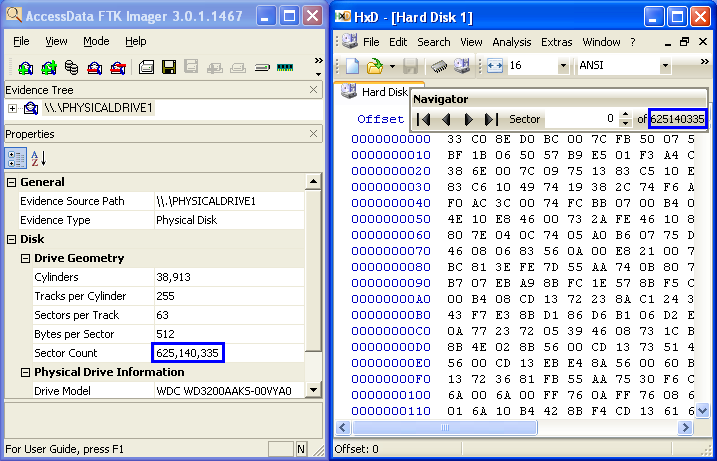
NOTE: Sector Inspector does not state the total capacity in sectors for any drive
(whether hard disk, flash or other). It provides only the maximum number of FULL cylinders a drive can be partitioned with for its given Head and Sector
values. For example, with a 320 GB hard disk connected to a PC, Sector Inspector states (output file) it has
"38,913 Cylinders, 255 Heads, 63 Sectors Per Track," for a total of: 625,137,345 sectors; exactly the same number of sectors mentioned in a note
about the last of its three NTFS partitions: "Partition #3 NTFS backup boot sector at LBN
625137344" (starting with LBN 0). However, if we use a utility that queries all the data provided by the drive, we find this disk
actually has a total of 625,140,335 accessible sectors. The difference in this case being 2,990 sectors. |
SIrun.bat is a simple Batch (*.bat) program you can use to automate running Sector Inspector on a Windows computer without having to open a Command Line Interface (CLI). You could use this together with the secinspect.exe file on a thumb drive as another useful tool to help your friends! We decided to not only have it record the date and time it was run, but also have it add subsequent runs to an existing file rather than overwrite it; thus preserving any past data, making sure you won't accidentally overwrite it. Just copy and paste the following lines into a text editor, such as Notepad, save the file as "SIrun.bat" in the same folder as secinspect.exe and either double-click on the Batch program (or use "Run") to execute it. Sector Inspector's output will then quickly appear in a NOTEPAD window:
@echo off
REM     This is the SECTOR INSPECTOR Batch File:
REM  This program was created by Daniel B. Sedory to
REM  run secinspect.exe without having to first open
REM  a Command Prompt window. This program will only
REM  save information about any drives connected to
REM  a Windows PC when run, to the file 'SIout.txt',
REM  then display the file in NOTEPAD.

if exist secinspect.exe goto okrun
echo.
echo.
echo  Did not find secinspect.exe in this folder, but
echo  we will also try looking for it in its standard
echo  Microsoft Windows location...
echo.
echo  Press any key to continue searching for it.
pause > nul

REM  Sector Inspector might also be located at:
REM  C:\Program Files\Windows Resource Kits\Tools\
REM  So let's look for it there too!

cd C:\Program Files\Windows Resource Kits\Tools\
if exist secinspect.exe goto okrun
echo.
echo.
echo  Did not find secinspect.exe in this folder:
echo  C:\Program Files\Windows Resource Kits\Tools\
echo  either.  You must place secinspect.exe in the
echo  same folder as SIrun.bat, or download it again
echo  from Microsoft and install it in its standard
echo  location in order for this batch file to work.
echo.
echo  Press any key to close this window.
pause > nul
goto close

:okrun
echo -------------- >> SIout.txt
echo Date and time: >> SIout.txt
date /t >> SIout.txt
time /t >> SIout.txt
echo. >> SIout.txt

secinspect.exe >> SIout.txt

echo. >> SIout.txt
echo. >> SIout.txt

start notepad SIout.txt

:close
exit
If you want Sector Inspector to print the data without showing all the hex bytes in the MBR and VBR sectors, just add the switch "-n" like this: "secinspect.exe -n >> SIout.txt". Most Windows computers do not have a way to include choices in their Batch programs; if you have a copy of MS-DOS 6 or Windows 95/98/98SE, a program called CHOICE.COM would allow this. Using CHIOCE, you could create a more advanced Batch program that would give you a choice of how to print out the data; which commands to run!
3. MBRWizard — Roger Layton is this tool's author; no one else! We've kept an archive copy of v. 1.52 (MBRWiz page) (with MD5 sums) if you're interested; (versions 1.52/1.53 are still available on his new site's Legacy page.)
There are executables for Linux, MS-DOS and for all versions of Windows® (Win9x thru XP/2003) available! Here are some of its functions (Command Prompt style):
 MBRWiz - Version 1.52 for Windows XP/2K/PE          November 13, 2003
   Copyright (c) 2002-2003 Roger Layton            http://mbr.bigr.net
 Usage: MBRWiz [/option]
 /List        List MBR Entries
 /Disk=#      Selects the disk to use.  0 is used if not specified
 /Hide=#      Hides the Partition number specified by #, or * for all
 /Unhide=#    Unhides the Partition number specified by #, or * for all
 /Active=#    Activates the Partition specified by # {See: /BootMenu below!}
 /Inactive=#  De-activates the Partition number specified by #, or * for all
 /Del=#       Deletes the partition specified by #  {Note: Just from Partition Table!}
 /Wipe=#      1=Wipes the MBR, 2-Wipes the first 63 sectors of disk
 /Save=x      Saves the MBR to filename 'x'
 /Restore=x   Reads and restores the Disk MBR from filename 'x'
 /ShowFile=x  Shows contents of an existing MBR backup file named 'x'
 /BootMenu    Allows user to select an active partition from a menu
  {Note: This is simply another form of the /Active command; not a boot manager!}
 /Sort        Sort MBR Entries by disk location
 /IsSorted    Returns 0 if MBR partitions are already sorted
 /Shutdown=#  1-Forces OS shutdown, 2-Forces OS Reboot
 /Result      Shows Errorlevel code
4. ZAP63.zip (just 3kb) is an Assembly program which uses INT13 to 'zero-out'
every byte of the first 63 sectors of any hard drive you choose.
MD5 sum of ZAP.COM (new version 1.4) = 32b9c9f746b9bb19742980adbde3e4af
(MD5 sum of older version; v
1.3 = 1f78bd078613b771fc5f00075e89dfd1).
This program is based on the original 'ZAP' utility (which wiped-out 128 sectors; too many sectors in our opinion! So, we made this 63-sector wipe-out version instead). It's ideal for quickly zeroing-out the MBR plus the next 62 sectors; which may contain old boot overlays, managers or possibly viruses. NOTE: Your computer may contain some valuable information in the sectors between the MBR (first one on the disk) and first VBR (Volume Boot Record) sector, such as computer HDD IDs, so examine (e.g., using HxD) and save them before using this utility!
For those who really want to 'start all over again' though, we recommend spending the time to 'zero-out' every byte of
the whole disk with a program from the disk drive's manufacturer. By doing so, you may fix some "bad sectors" while carrying out the whole
process! For more info on HDD-wiping, see: our WIPE page.
HxD is one of the best FREE Windows disk editors (See at top of this page!)
If you need an easy Disk Editor to make manual changes to your Partition Tables, take this link to my FreeTools review
page about the PhysTechSoft-Disk Editor (PTS-DE); if you still use boot floppies under DOS,
this is a great tool. What if you need to make small but detailed changes (such as changing the NT Disk ID bytes) to system areas on the OS boot drive of your PC and do
not have any other PC or bootable disk drive to connect it to as a "slave drive"? Answer: You use a bootable CD/DVD; such as an Ubuntu Live CD/DVD!
IMPORTANT FEATURE: As of v6.5, TestDisk can now COPY any file (or recurse
through whole subfolders) from within a "lost partition" without having to first restore and reboot the computer; ideal for someone who forgot
to save some data before deleting a partition and for some odd reason, you still can't access the partition any other way. We strongly advise you to first run this tool on known
good drives, without using any of its write functions while first learning how to use it. If possible, you may also wish to use
some discarded drive(s) for experiments in testing all of its features! When you are fully confident in how to use TD, recovery operations
should be less of a hassle. Choose from many precompiled executables: TestDisk can run under all Windows™ and DOS (such
as after booting up with a Win98 Boot Disk with the DPMI server program; CWSDPMI.EXE that's included in the download), or Linux
(there's a static version you can use under almost any Linux OS) operating systems. There's a binary for MAC OS X (10.x) too! However, TestDisk will recognize and can recover partitions of at least the following types (check site
for all the latest file systems): BeFS (BeOS), This is a revision of a free program we saw at Power Quest (before they ceased to exist). It will help you
check if both the CHS Tuples and the LBA Sector numbers found in a Partition Table match. If you're seeking info specifically for the Windows™ Vista or Windows™ 7 operating systems for use on multi-booting disks, we suggest visiting If a commercial company desired to have a PC workstation boot into more than one OS, they often turned
to commercial software such as: System Commander 2000 by V Communications, Partition Magic by PowerQuest (Note:
If you want to purchase Partition Magic 8.01, sorry, but Symantec discontinued selling it: "Due to changing consumer usage
trends and Symantec's desire to offer the highest quality and most innovative solutions for the latest operating systems, Symantec has discontinued
Norton Partition Magic 8.0."), Acronis OS Selector (previously Boot Wizard), which is now only a portion of their If you're running a Linux OS on the system, using GRUB or
LILO are viable alternatives as are the BOOT.INI
file from an existing Windows NT/2000/XP OS, or BOOTMGR and BCDEDIT with a Windows™ 7 OS
install. The Ranish Partition Manager (very out-dated now!) (More out-dated stuff recommended only for small drives prior to
Windows XP OS running in FAT file systems)
(If you want to try running it under Windows 9x, please read the CAUTION NOTE below the download link before doing so!)
TestDisk (Partition Recovery) and more...
TestDisk
(Version 7.1; July 7, 2019). Check out the latest features at the website!
This gem may amaze you with how quickly it can find "lost partitions" and restore them! The software
basically finds any deleted partitions, then allows you to write the necessary data into your Partition Table(s) within a few minutes! (Be
sure to read the helpful 'Wiki pages' documentation! TestDisk also comes with a newer program, PhotoRec
- The digital photograph and MANY other file-types recovery tool.)
BSD disklabel (Free BSD / Open BSD / Net BSD),
CramFS (Compressed File
System),
EXT2/EXT3 (Linux),
FAT12, FAT16 and FAT32 (DOS or Windows™),
HFS and HFS+, (Hierarchial FS),
JFS (IBM's Journaled FS),
Linux Swap (1 and 2),
Linux Raid (1, 4, 5 and 6),
LVM and
LVM2 (Linux Logical Volume Manager),
MAC Partition Map,
Netware NSS,
NTFS (Windows™ NT / 2000 / XP
/ 2003),
ReiserFS (1 and 2; 3.5 and 3.6),
UFS and UFS2(Sun or BSD),
and XFS (SGI's
Journaled FS).
Partition Table Calculator (PT Calc)
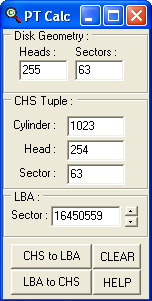
Although CHS Tuples in an actual MBR sector are limited to 1023,254,63 (see our page on Partition Tables for a
detailed explanation), this program allows you to calculate the pseudo CHS vales for LBA Sector numbers up to their 32-bit limit (a 4-byte Double Word; see
Note 4 on our page 6 to 64 Bits concerning bit sized limits.) That gives us a possible Absolute Sector of
4,294,967,295 (or a CHS equivalent of 267,350 Cylinders, 90 Heads and 4 Sectors; CHS Tuple: 267349,89,4).
3 TB hard disks became available some time ago. That's far beyond this 32-bit limit (which is reached at less than 2.2 TB). To use the full
capacity of a 3 TB disk, you may need to upgrade your BIOS, install a 64-bit OS or do both. We would recommend reading about the new GPT/EFI boot
partitions ( GUID Partition
Table) before you consider purchasing a 2.2+ TB disk for your PC.
Get PTCalc from here.Multi-OS Booting
Multibooter's here: http://www.multibooters.co.uk/. Acronis
Disk Director 11 program or OSL2000 by osloader.com
to replace their standard MBRs.
NOTE: The easiest way to try out, say, Ubuntu Linux version 10.04 LTS (Lucid Lynx), or later, on a Basic MBR, ordinary Win7
PC (i.e., the disk is not encrypted; no TPM hardware in use), is to use the built-in SHRINK capabilities of the Windows 7 "Disk Management"
utility to shrink the size of your Main Windows partition (NOTE: It must be the last partition on the disk drive! CAUTION: A number of 'brand name'
PCs have extra partitions added by the PC manufacturer which can cause all sorts of difficulties for those attempting such tasks!) to create, say, at least
25 GB of un-partitioned free space at the end of the disk for Linux to install into. But before doing so, be sure to make a copy of your Windows 7 MBR
sector. You may contact us for further assistance.
For those who don't require much support, there are FREE programs, including an interactive MBR which can be obtained
from Mikhail Ranish: the Ranish Partition Manager and Boot Manager http://www.ranish.com/part/. Download the stable freeware version 2.37.12 (which includes source code), or try his latest program.
Place a floppy in your A:\ drive and run PM's Install.bat to save all the Partition information from your drive(s) to the floppy! [ Why?
Because the Partition Table data for your particular drive(s) can NEVER be refreshed or recovered by running an FDISK /MBR command; which simply replaces the MBR
code! ]
Ranish's program, part.exe (in version 2.37.12 or part_cmd.exe
in the newer beta set), is also 'Console' enabled which means it can be used rather effectively in Batch files too! For the details, open a DOS-Window at
the folder where part.exe exists, then enter: part -? at the prompt
(do NOT use -h as this is a command to HIDE partitions!!).
 A nice little graphically enhanced
and interactive MBR system called XOSL (Extended Operating System Loader). Unfortunately, its development seems to have been abandoned! Since this FREE
system promoted the Ranish Partition Manager, it appears that Mikhail Ranish has given it some room on his own site for downloading:
A nice little graphically enhanced
and interactive MBR system called XOSL (Extended Operating System Loader). Unfortunately, its development seems to have been abandoned! Since this FREE
system promoted the Ranish Partition Manager, it appears that Mikhail Ranish has given it some room on his own site for downloading:
http://www.ranish.com/part/xosl.htm;
you'll find a link there to the author's own web site.
Real Hard Disk Research
Most of
the data on these pages are the result of my own testing using various versions of FDISK on real working hard drives which were methodically examined in
detail with various disk editors and other utility software.
Since I also believe in having multiple sources, especially on technical topics,
I've placed some other web sites here with references to disk drives, the MBR and OS Boot Records. [But remember to check
and double-check before using any information from the Internet, as subtle errors exist in many magazines and on web sites.]:
Ray Knight's Home Page [ Ray's pages are quite
informative. He also lists many sources. But I'm sure he'd agree that without a specific statement, neither of us want you to think that we've validated
all the data on those pages simply because we list them as references. ]
List of
Partition Identifiers for PCs by Andries Brouwer
Detailed listing of almost every different type of
partition that has ever been used on a PC.
( I do however wish that he'd used a different font for the 'identifiers' rather than the same
lower-case letters as his text! ) His second page (titled: Properties
of partition tables) may be confusing to many (including the way some terms are used), but it does contain some real problems people have had with
different OSs (section 2.8) and large drives (section 2.7) as various bugs or limits have been encountered in the course of
our ever increasing hard disk sizes!
NOTE: We have our own simplified List of Partition Table Types here!
You can write to me using this: online reply form. (It opens in
a new window.) MBR and Boot Records Index
The Starman's Realm Index Page